
See what each role allows, before you give it
A Roles page in the admin’s Tools shows what every role can do on each kind of content, its exceptions and its capabilities, the project’s own roles included.
A project’s own style for any block, in one command
pnpm make:block-style adds a style of the project’s own to any block, CSS-only or with its own markup, and can make it the default or hide the built-in ones.
Signing in, harder to guess
A limit on failed sign-ins per network, a lockout each project can set, a Secure session cookie and a log line for every failed attempt.

A new theme no longer changes the site by itself
Installing a theme package adds its themes to the lists; the site’s look changes when someone picks one, or when the code names it.
A project’s own settings, and its footer gets them
extendGlobal adds a project’s fields to template-site’s settings pages, settingsGlobal adds a settings page of its own, and both reach the project’s footer and header.
A project’s own theme, in one command
pnpm make:theme writes a theme into the project’s theme package, and creates and connects the package when there is none.
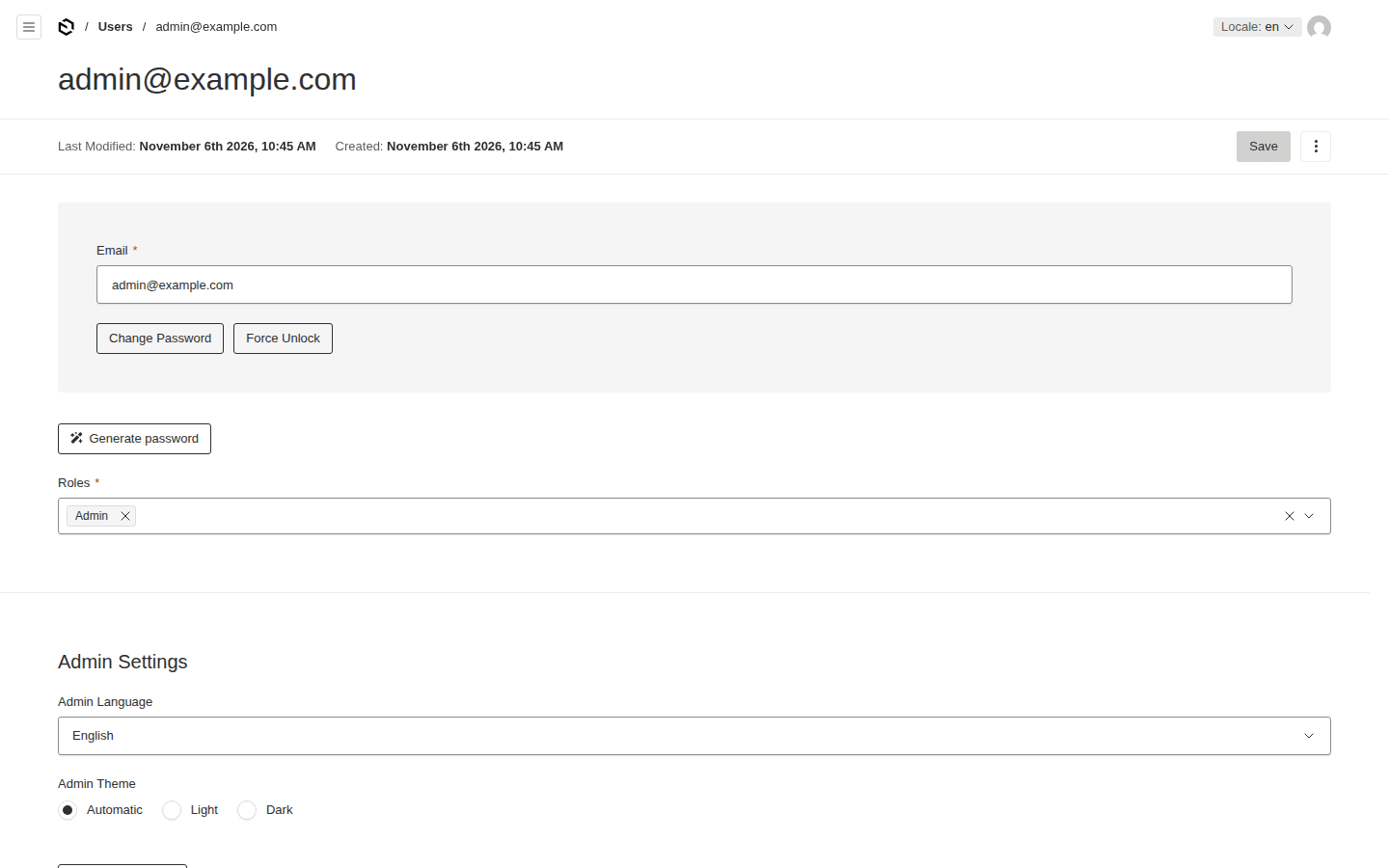
The list of users is for who manages them
Editors, publishers and site managers now see only their own account. Admins and user managers still see everyone.
Upgrading a project, step by step, with a skill
The apex-upgrade skill takes a project to a new template release: it lists what changed, syncs, does the upgrade notes, runs the checks and stops before the commit.
Social profiles: one list for the footer and for search engines
Settings → Social profiles lists the organization’s profiles. Each one can show in the footer as an icon, be declared to search engines, or both.

Editors write the footer’s copyright line
Settings → General has a copyright line per language. {year} in it becomes the current year; left empty, the footer keeps “© year site name”.

A Payload site, ready to clone